







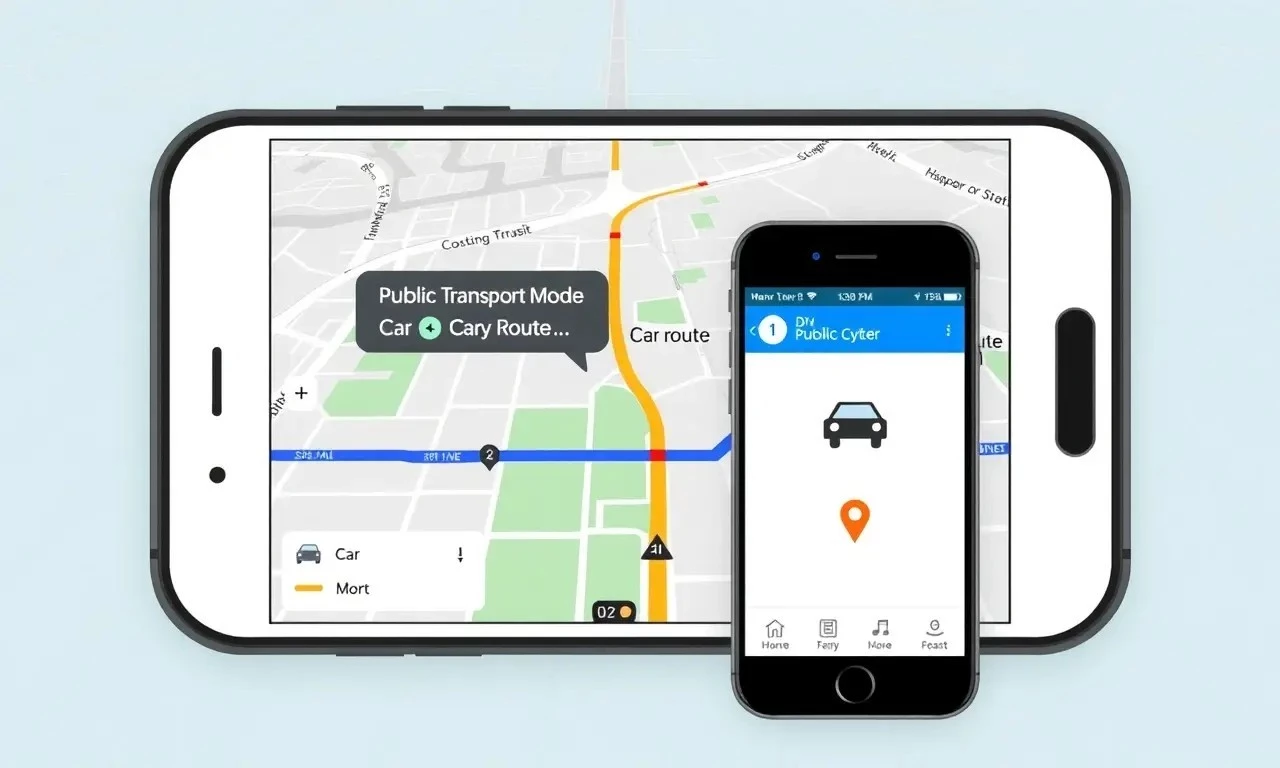
How to change google maps from public transport to car
Google Maps is a versatile tool that offers various navigation and directions options for users worldwide. Whether you’re driving, walking, cycling, or using public transport, Google Maps serves as an effective route planner to guide you through your journey. Sometimes, you may need to switch from one transportation mode to another, such as from public transport to car. This guide will walk you through the process of changing the settings to suit your travel preferences.
Accessing Google Maps
First, ensure you have the Google Maps mobile app installed on your smartphone; Open the app and enter your desired destination in the search bar. Google Maps will automatically generate a range of travel options based on your current location and the destination you input.
Understanding the Map Interface
The map interface will display your current location and the destination, along with several suggested routes. By default, Google Maps may display public transport routes if that’s what you used previously. You can easily switch to driving directions by following these steps:
Steps to Switch Mode
- On the map interface, look for the transportation mode icons. These are usually displayed at the top of the screen, just below the search bar.
- The icons typically include car, bus, bike, and walk. Tap the car icon to switch to driving directions.
- Google Maps will then update the route planner to show car routes, including estimated travel times and any potential traffic issues.
- If needed, you can change settings to adjust your preferences further, such as avoiding tolls or highways.
Customizing Your Route
Once you’ve switched to the car mode, you can customize your route further. Google Maps allows you to change your travel options by tapping on Options or Settings:
- Select avoid tolls, avoid highways, or avoid ferries to tailor your journey.
- Check the real-time traffic updates to optimize your commuting experience.
Benefits of Using Google Maps for Driving
Switching to car mode in Google Maps not only provides driving directions but also gives access to real-time traffic data, alternate route updates, and estimated arrival times. These app features help make your journey more efficient and stress-free.
Changing your Google Maps settings from public transport to car is straightforward and enhances your navigation experience. By following these steps, you can seamlessly transition between different transportation modes to suit your travel preferences. Whether you’re planning a daily commute or a road trip, Google Maps offers a reliable route planner that adapts to your needs.
For further assistance, refer to the user guide within the app or explore more app features to maximize your navigation experience.
